Owner guide
How to list an item and get paid for it, from the first Listing to your Payout. The screenshots use sample data. Renting something instead? See the Renter guide.
1. Create a Listing
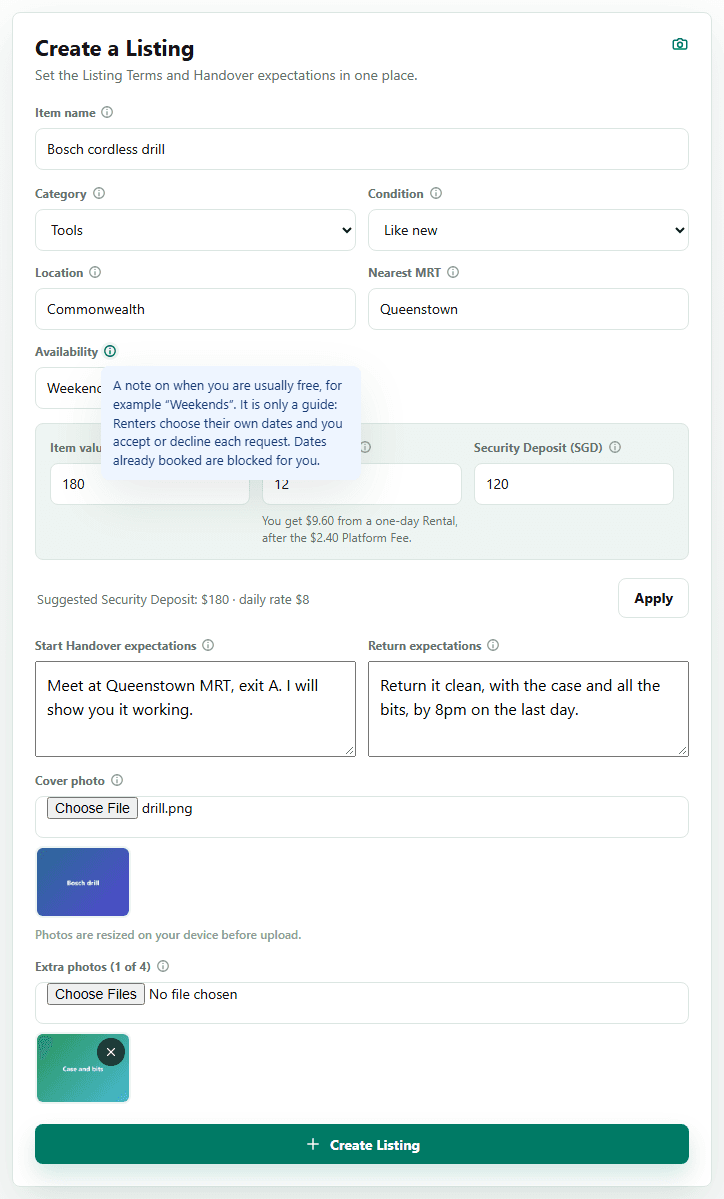
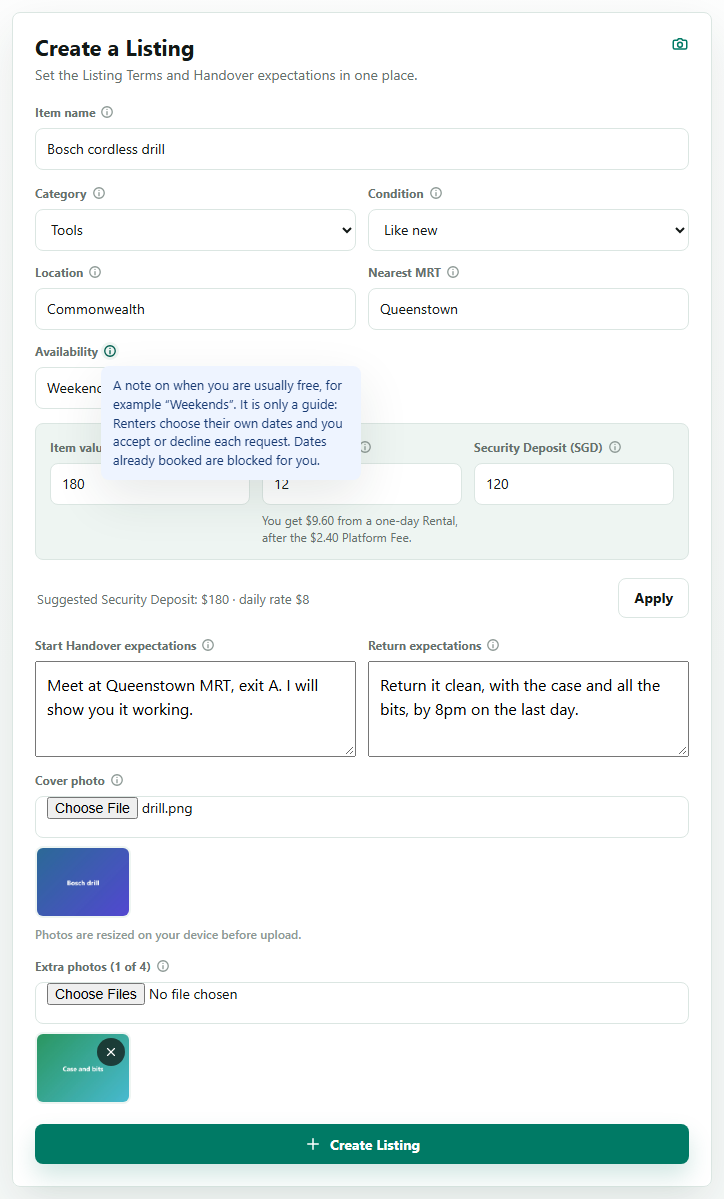
Tap Create a Listing and fill in the form. The small info button beside each label explains the field. Availability is a note for Renters, such as “Weekends”. It does not block dates by itself. Dates that are already booked are blocked for you automatically.
Write the Start Handover expectations and the Return expectations clearly: where to meet, when, and what state the item should come back in. A Return Adjustment is judged against them.
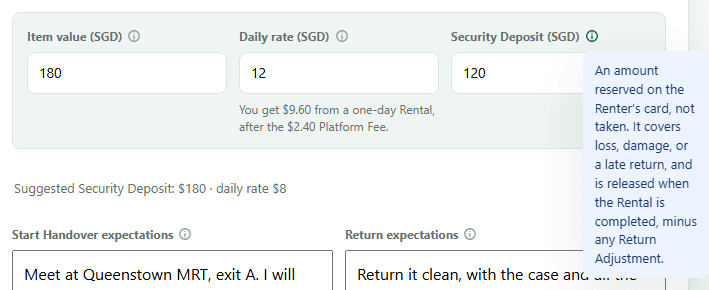
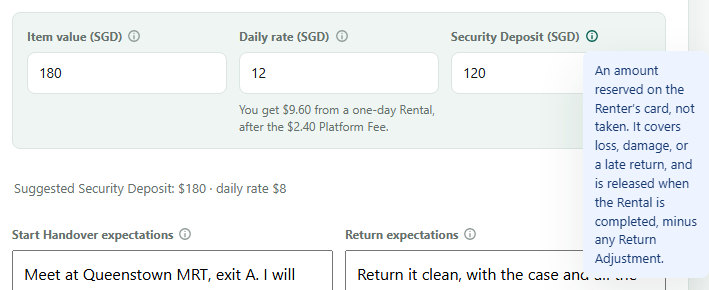
Set the daily rate and Security Deposit
Enter the item's value and Renthings suggests a daily rate and a Security Deposit. The Security Deposit is reserved on the Renter's card, not taken. It covers loss, damage, or a late return. Under the daily rate you can see what you get from a one-day Rental, after the Platform Fee.
2. Wait for it to go live
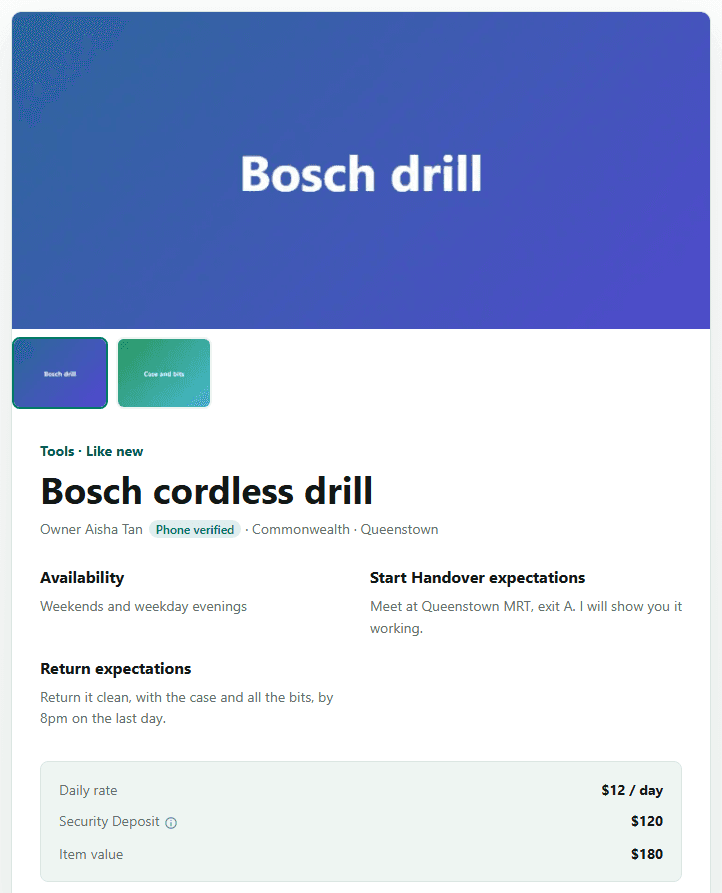
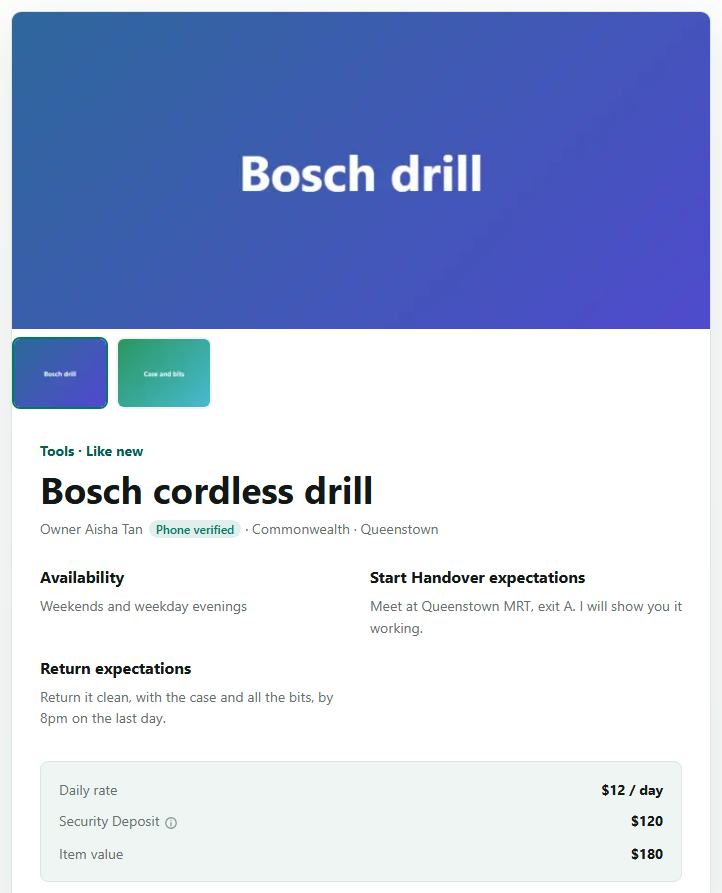
Every Listing is checked against the Content Policy before it is published, usually within a minute. Until then only you can see it. After that it shows on the browse page for Renters.
3. Answer a request
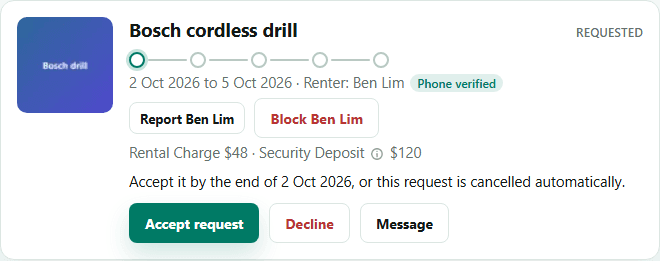
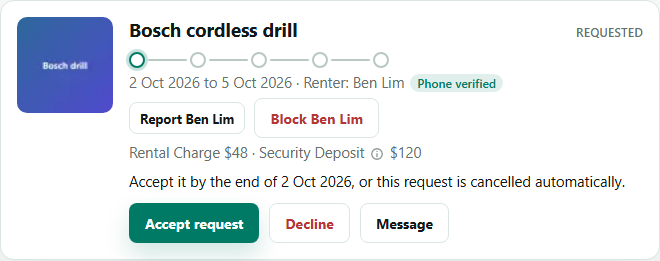
When a Renter requests your Listing you are notified, and the request appears on your Rentals page. Accept it by the end of the first day of the Rental Period, or it is cancelled automatically. You can message the Renter from the card.
4. Wait for the Renter to pay
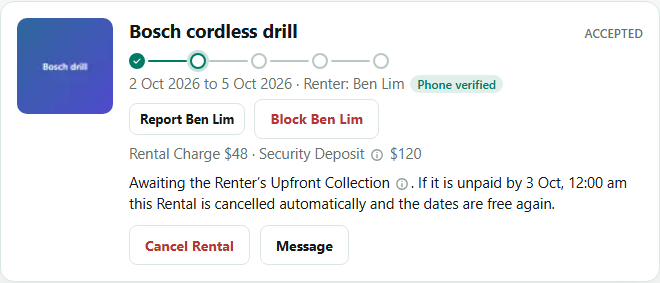
After you accept, the Renter pays the Upfront Collection and authorizes the Security Deposit. Once both are in, you can confirm the start Handover.
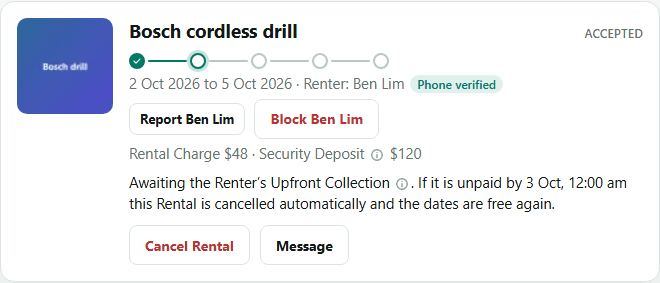
5. Confirm the start Handover
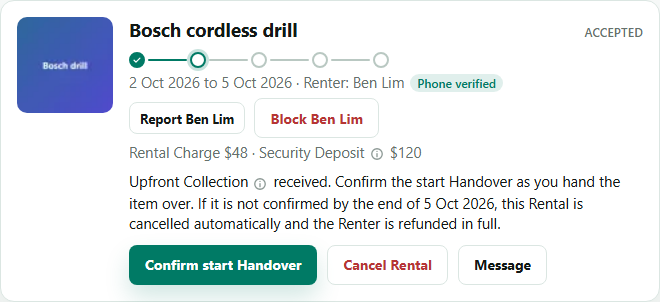
Meet the Renter as arranged. When you hand the item over, tap Confirm start Handover. You can do this from the day before the Rental Period starts. If it is still unconfirmed at the end of the Rental Period, the Rental is cancelled and the Renter is refunded in full.
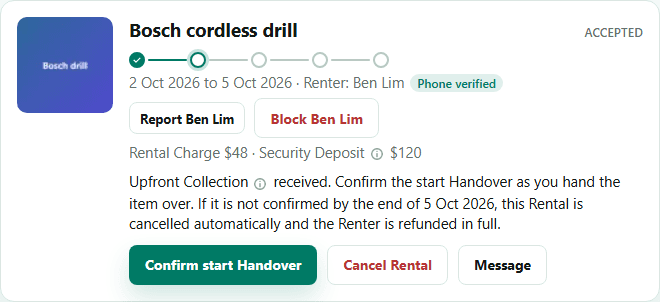
6. During the Rental
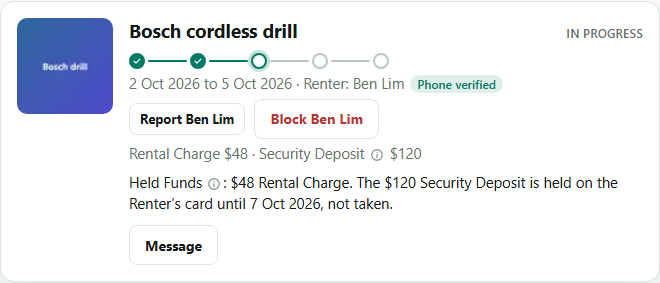
The Rental is in progress. The Renter's payment is held as Held Funds until the Rental is completed. From the first day of the Rental Period, only you can cancel a paid Rental.
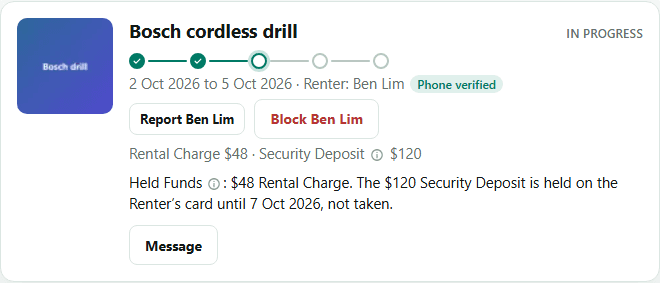
7. Take the item back
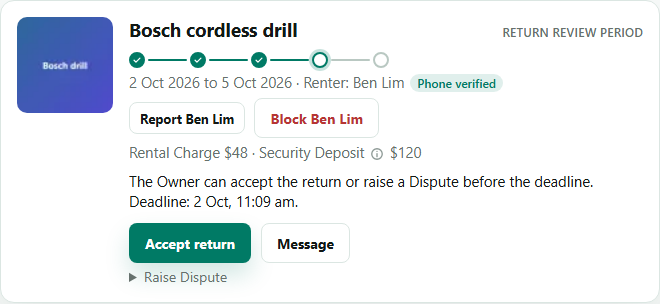
When the Renter marks the item returned, you have a Return Review Period. If everything is fine, tap Accept return. If there is damage, a missing accessory, or a late return, you can propose a Return Adjustment from the Security Deposit, or raise a Dispute. You can also confirm the item returned yourself, which completes the Rental straight away.
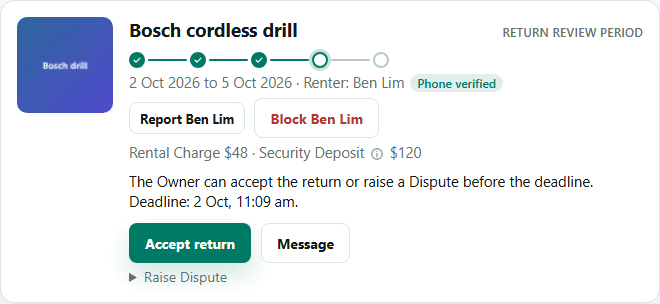
8. Get paid
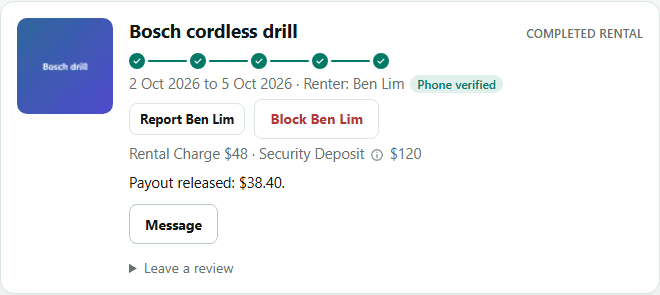
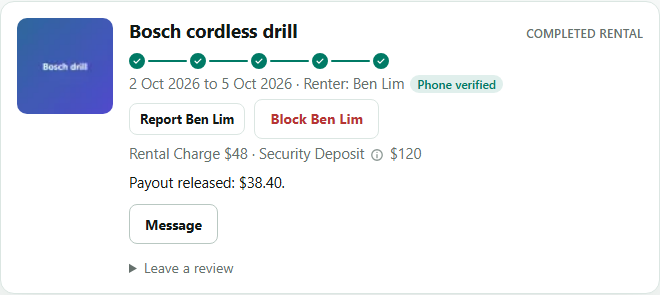
When the return is accepted, the Rental is completed and your Payout is released: the Rental Charge less the Platform Fee. It goes to your Payout account.
Connect your Payout account in Settings before your first Rental, so there is somewhere to send it.
Something not as expected? See Help for Disputes, Held Payouts and Reports.